 klad
Changing strokes
Pick up any stroke or fill, yours or an agent's, and move it, recolour it, bend it or delete it. klad paints it again in its new state.
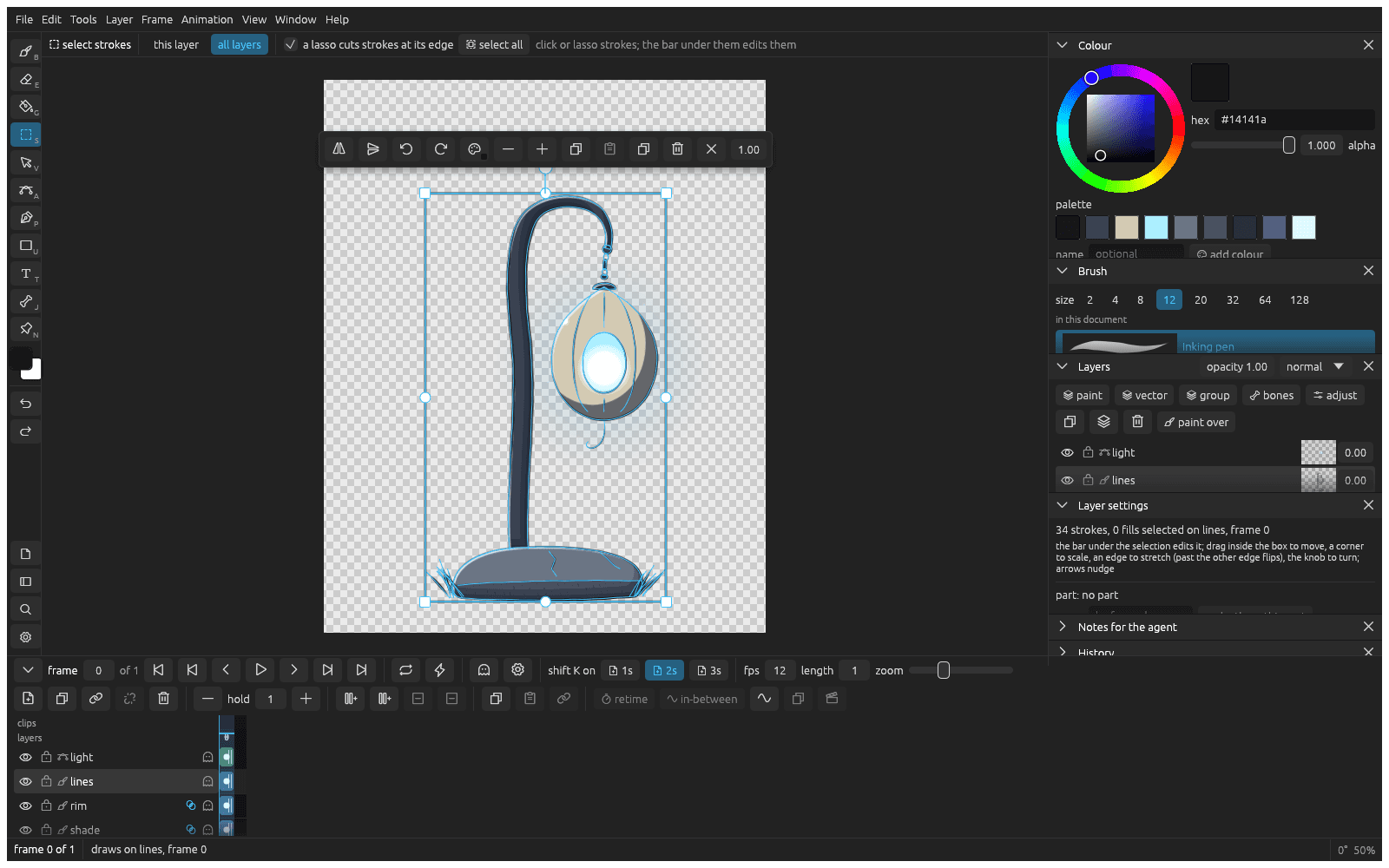
Move something
Press V, press on what you want to move and drag. Hold alt to drag a copy.
Select strokes
Press S and click a stroke. Shift click adds more, and dragging a loop lassoes them. cmd A selects everything on the layer at this frame.
To pick on every layer instead of only the active one, switch the bar over the canvas to all layers.
Change what you selected
Drag inside the box to move it, a corner to scale it and the knob to turn it. The bar next to the selection recolours it with the current colour, makes strokes thinner or thicker, duplicates it (cmd D) and deletes it (Backspace). Recolouring several strokes keeps each one's own lighter or darker shade, so a painted area stays painted.
Move an eraser on its own
- Select the strokes it erased. The bar shows what is attached to them, such as 1 attached.
- Click it, and drag. The eraser attaches to the strokes it lands on.
To let it erase whatever is under it instead, choose Edit > Strokes > Detach.
Bend a stroke
- Press A and click the stroke.
- Drag a point or a handle. The stroke keeps its pressure, so its taper stays where it was.
Alt click on the stroke adds a point.
Move a whole layer
Press cmd T and drag inside the box to move the layer, a corner to scale it or outside it to turn it. It moves every drawing on the layer; switch off every drawing to move only this frame's. Press Return when you're done.
Name the parts of a drawing
Select the strokes of one piece, such as a leaf or a leg, type a name under part in layer settings and click make them this part. In-betweens pair strokes by part.
From docs/guide/selecting.md in klad at main (0491491).