 klad
Painting
Paint with klad's brushes, blend colours on the canvas and make brushes of your own.
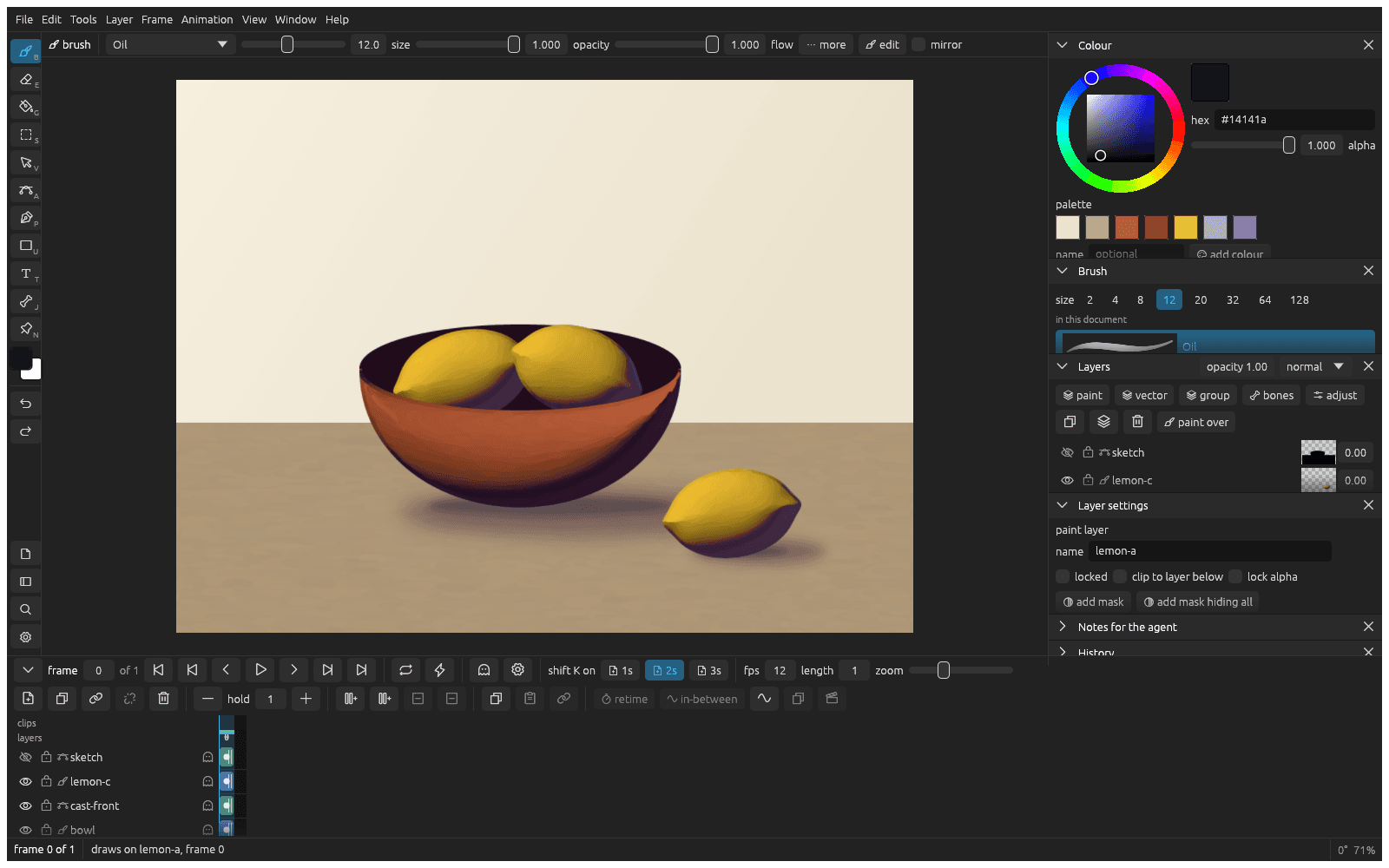
Paint and erase
Press B and paint on a paint layer. E switches to the eraser and back, and so does the eraser end of the pen. [ and ] make the brush smaller and bigger. With the eraser on, feather in the bar fades its edge like an airbrush.
An eraser stroke stays with the strokes it erased, like a mask that travels with them: move them and the cut goes along, without biting into what they land on. Smudges and blends stay with their strokes the same way. Move an eraser on its own to change that.
Pick a brush and a colour
Click a brush in the Brush pane: Inking pen, Pencil and Marker for lines, Oil, Loaded oil and the bristle brushes for paint. Hold alt and click the canvas to pick up a colour from it.
Blend colours
Paint with Smudge, Wet round or Blender over colours that are already there. They only mix paint on the layer they paint on, so put the colours you want to blend on one layer.
Make paint look thick
- Paint with Oil or Loaded oil.
- In layer settings, pick relief from add an effect.
- Drag on the light dial towards where the light comes from.
Paint symmetrically
Turn on mirror in the brush bar. Every stroke is painted with its mirror image across an upright line.
Make your own brush
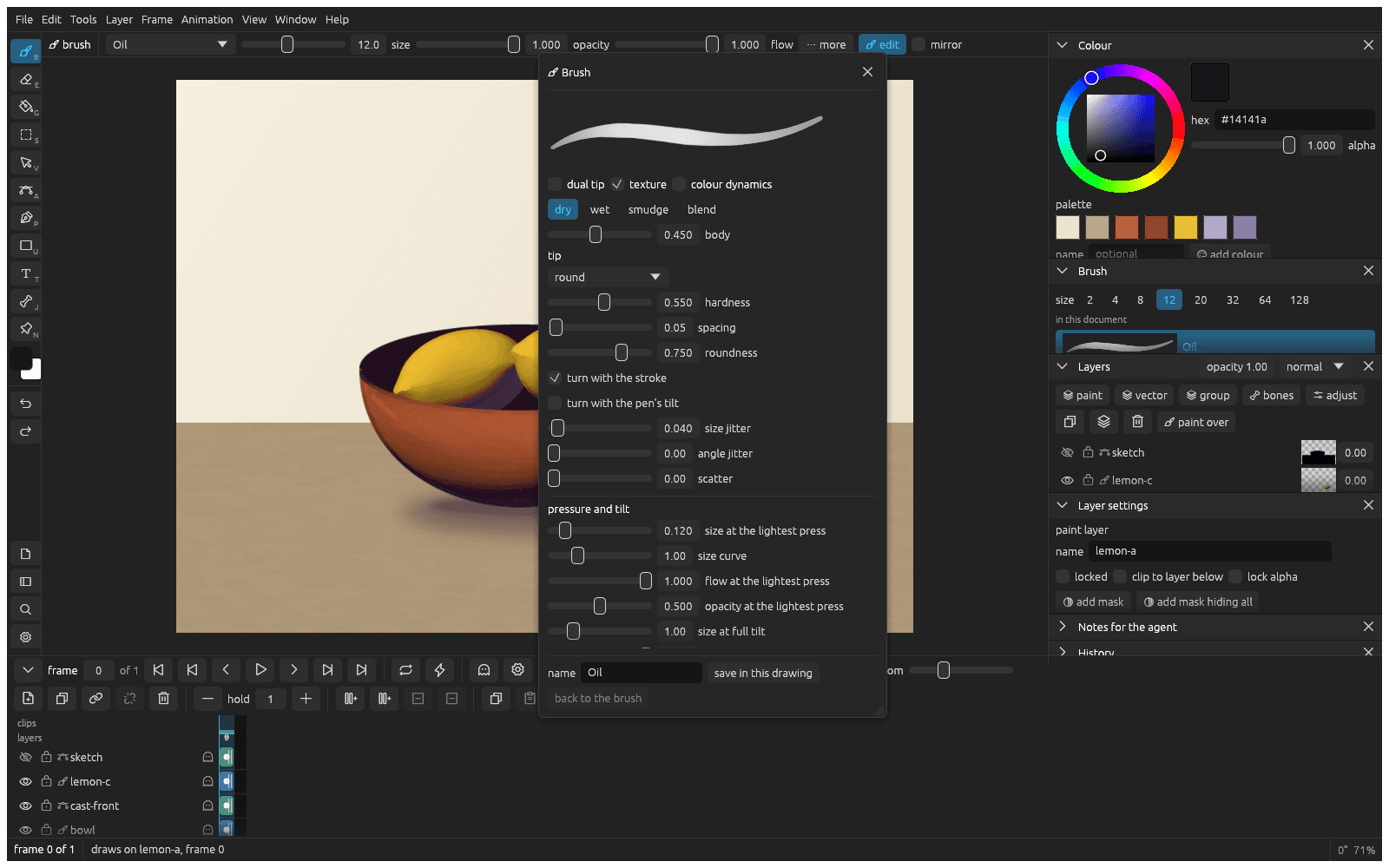
- Press F5 to open the brush editor.
- Change the tip, the pressure or the kind of paint, and watch the sample stroke at the top.
- Type a name and click save in this drawing.
Tune your pen
- Open the settings with cmd , and go to Pen.
- Press on the tablet as hard as you ever draw, then click heaviest = my peak.
- If light strokes still come out too heavy, set the curve above 1.
From docs/guide/painting.md in klad at main (0491491).